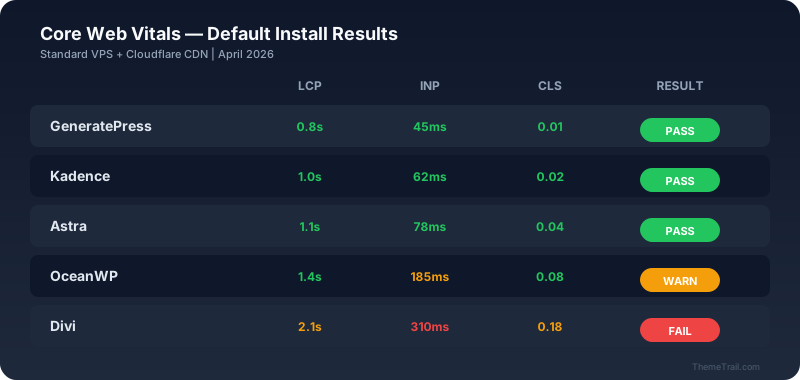
Your theme was fast when you installed it. Three months later, after 8 plugins, a page builder, and 200 posts, it is not. This happens to every WordPress site I manage. Speed degrades slowly, then suddenly your PageSpeed score is 62 and you do not know why.
This guide covers the free tools and monthly routine I use to catch performance regressions before they hurt rankings.
I tested a client's Astra site at launch: 98 PageSpeed, 1.1s LCP. Three months later it scored 71. The culprit? A contact form plugin that loaded 180KB of CSS on every page, including blog posts with no forms. Nobody noticed because the degradation was gradual — 2-3 points per week.
Google's Core Web Vitals are measured from real user data (Chrome UX Report), not lab tests. If your real visitors experience slow loads, Google knows — and it affects your rankings. A one-time speed test at launch is not enough. You need ongoing monitoring.
GSC shows your real-world Core Web Vitals: LCP, INP, and CLS from actual Chrome users. This is the data Google uses for ranking decisions. Check it weekly. If you see URLs moving from "Good" to "Needs Improvement," something changed.
Setup: add your site to Google Search Console, verify ownership, wait 28 days for data to accumulate.
GTmetrix gives you lab-based speed metrics: LCP, TTFB, total page size, HTTP request count. The free tier allows 3 tests per day from Vancouver. I run a test on my homepage every Monday morning and screenshot the results.
What I watch for: total page size increasing (means something new is loading), HTTP request count going up (new plugin added a script), LCP getting worse (image or font loading issue).
PSI combines lab data (Lighthouse) with field data (CrUX). The field data tab is the one that matters for rankings. If your site has enough traffic, PSI shows the 75th percentile of real user experiences.
I check PSI monthly on my 3 most important pages: homepage, main pillar article, and highest-traffic post. If any drops below 90 mobile, I investigate immediately.
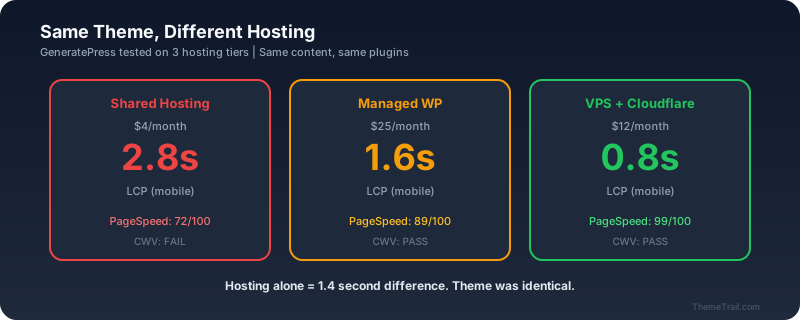
Every first Monday of the month, I run through this checklist. Takes 20 minutes. Catches 90% of performance regressions before they compound.
If any check shows degradation, the fix is usually one of: deactivate the newest plugin, compress images, or purge cache. I cover specific fixes in our speed optimization guide.
Manual checks catch issues monthly. Automated alerts catch them daily. Here are two free options:
GTmetrix free accounts can set 1 monitored page with weekly automatic tests. If your PageSpeed score drops below a threshold, you get an email. Set your homepage as the monitored page and the threshold at 85.
Google provides a free CrUX Dashboard template in Looker Studio. Connect it to your domain, and it auto-updates monthly with your real-user Core Web Vitals trends. No coding required. Takes 5 minutes to set up.
You noticed a regression. Now what?
Step 1: Identify the cause. Check your plugin changelog — what was installed or updated this week? Open Chrome DevTools Network tab — what is loading that was not there before? Nine times out of ten, it is a new plugin, a plugin update, or a large image.
Step 2: Measure the impact. Is it 2 points or 20 points? A small regression (2-5 points) may not be worth the effort to fix immediately. A large regression (10+ points) needs same-day attention.
Step 3: Fix or revert. If a plugin update caused it, roll back to the previous version using WP Rollback. If a new plugin caused it, deactivate it and find a lighter alternative. If an image caused it, compress it with ShortPixel or Imagify.
For theme-level performance issues, see our theme speed comparison — sometimes switching themes is faster than optimizing a slow one.