How to Install a WordPress Theme — 3 Methods, 5 Minutes
You just bought a WordPress theme. Or maybe you found a free one you like. Now what? The installation process takes about five minutes once you know the steps, but there are a few ways to mess it up that nobody warns you about.
I've walked probably 300+ people through this during my years running ThemeTrail support. Here's the version I wish I could have just sent them a link to.
Method 1: Upload Through the Dashboard (Easiest)
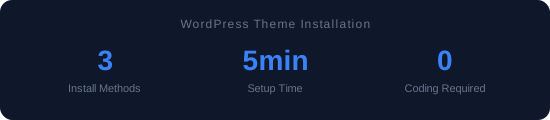
This works for 90% of theme installations. Go to Appearance → Themes → Add New → Upload Theme. Choose the zip file you downloaded. Click Install Now. When it's done, click Activate.
That's it. Three clicks after you find the right menu.
Common pitfall: you downloaded the theme and got a zip file that contains another zip file inside it. ThemeForest does this a lot — the outer zip contains documentation, PSD files, and the actual theme zip. WordPress wants the inner zip, not the outer one. If you see an error like "The package could not be installed. The theme is missing the style.css stylesheet," you uploaded the wrong zip.
Method 2: WordPress Theme Directory
For free themes hosted on WordPress.org: go to Appearance → Themes → Add New. Browse or search for your theme. Hover over it and click Install, then Activate.
Even easier than Method 1 because there's no file to download first. The theme comes straight from the official directory, which also means it's been reviewed for security and coding standards. Not foolproof, but safer than random theme sites.
Method 3: FTP Upload (When Dashboard Fails)
Sometimes the dashboard method fails. Maybe your hosting has a small upload limit (some shared hosts cap at 2MB, and theme zips can be 15-30MB). Maybe you're seeing a white screen after upload.
The FTP method bypasses all of that. Connect to your server with an FTP client (FileZilla is free and works fine). Go to /wp-content/themes/. Upload the unzipped theme folder there — not the zip, the actual folder. Then go to Appearance → Themes in your dashboard, and the theme should appear. Activate it.
This method also works for WP-CLI users: wp theme install theme-name.zip --activate does the same thing from the command line.
After Installation
Installing the theme is step one. Here's what to do right after:
Import demo content if the theme offers it. Most premium themes include a one-click demo importer. This gives you sample pages, posts, and settings that match the theme's demo site. You'll replace this content with your own, but it's a useful starting point.
Check your site on mobile. Pull out your actual phone. Not Chrome DevTools — your real phone. Make sure the menu works, text is readable, and nothing overflows the screen. I've seen themes that look perfect on desktop and completely break on mobile after installation.
Set up a child theme before making any customizations. This takes 10 minutes and saves you from losing changes on the next theme update. Do it now while you remember.
Run a speed test. GTmetrix or PageSpeed Insights. Note the score. This is your baseline. If it's already slow with just the theme and demo content, you know where the problem starts. Check my speed optimization guide for fixing it.